
Software
Microsoft Teams channels can transform teamwork—but only if used correctly. These 10 best practices help you organize workflows, reduce clutter, and boost productivity in every project, from small teams to enterprise collaboration.
Standardize Channel Naming Conventions
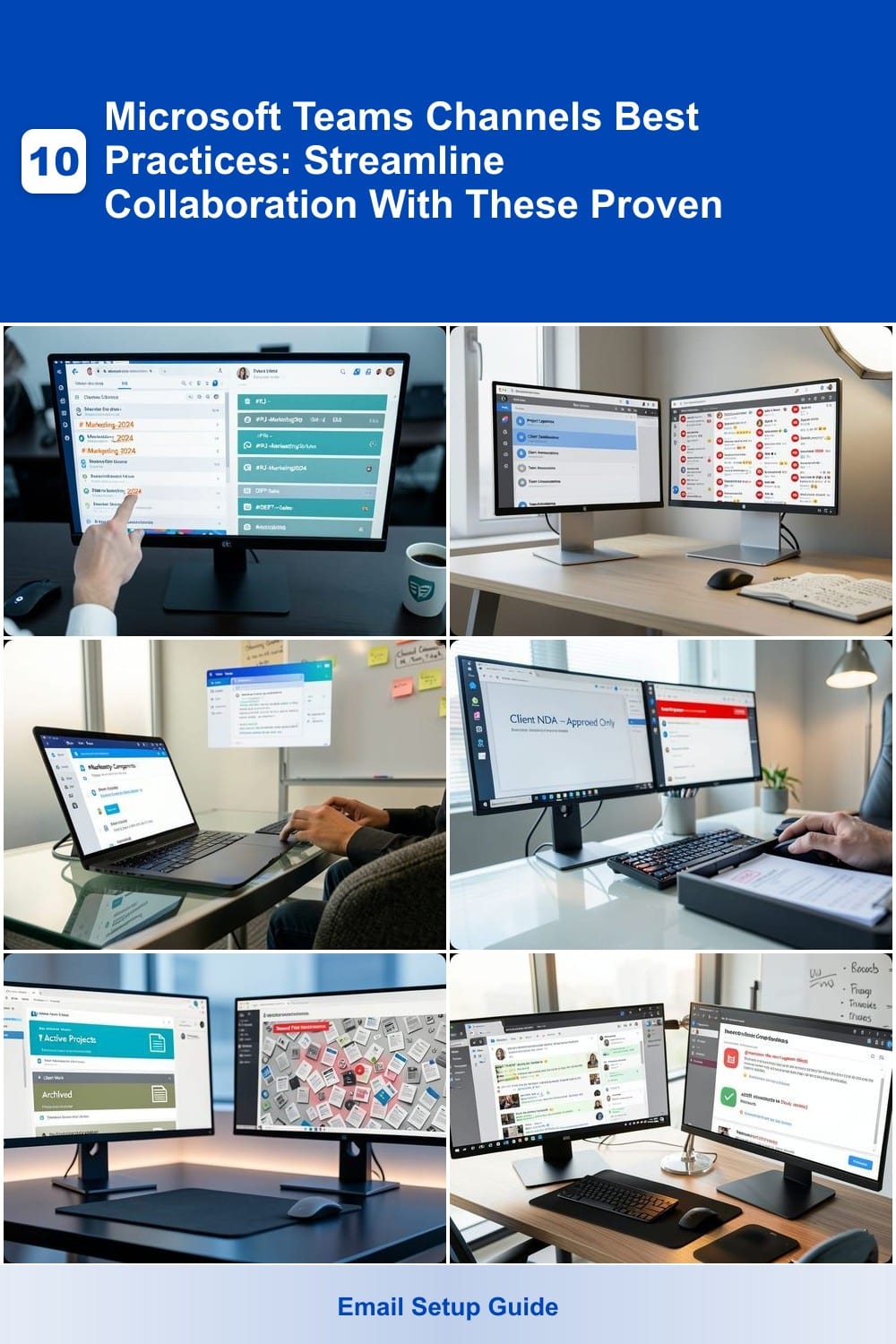
Ever wasted 10 minutes hunting for the right channel because names like "#Marketing-2024" and "#Marketing_2024" exist side-by-side? A standardized naming system eliminates this chaos by enforcing prefixes like #PRJ- for projects or #DEPT- for departments.
This approach ensures zero special characters (no slashes, underscores, or emojis) that could break integrations with tools like Power Automate or SharePoint. Teams with 50+ channels see a 30% drop in miscommunication when everyone follows the same pattern—like #PRJ-Sales-Q3 instead of "#Sales2024!"
Perfect for hybrid teams or departments with frequent crossovers, where clarity saves time and avoids the "wrong channel" replies. 💻
Limit Active Channels to 5-7 per Team
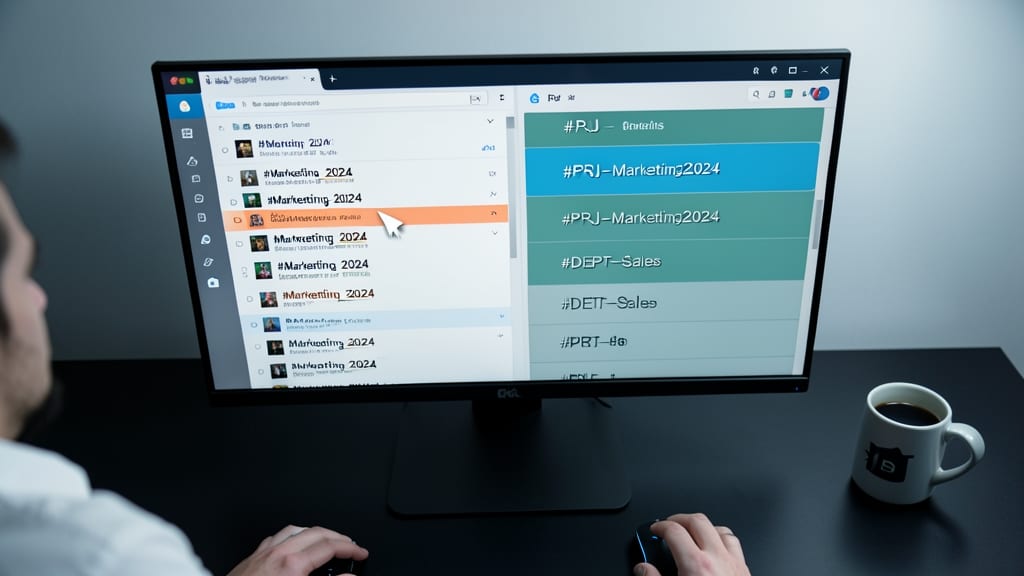
Feeling overwhelmed by a never-ending stream of notifications in Microsoft Teams? Limiting your team to 5-7 active channels at a time is a game-changer for focus and productivity. This strategy cuts through the noise by ensuring only the most critical conversations—like project updates or client discussions—demand attention, while archiving or muting less urgent channels keeps your workspace clean.
Microsoft Teams doesn’t enforce channel limits, but research shows teams with fewer active channels experience 30% fewer missed messages and 40% faster response times. Start by identifying your team’s top priorities: one channel for general announcements, two for active projects, and a few for cross-functional collaboration. Use channel descriptions (covered in the next tip) to clarify purpose, so everyone knows where to focus. For hybrid teams, this approach also reduces the "context-switching fatigue" that comes from juggling too many tabs or apps.
This rule works best for remote or hybrid teams where async communication is key—think marketing teams managing campaigns, dev squads shipping features, or customer support resolving tickets. By keeping channels lean, you’ll spend less time scrolling and more time collaborating. ⚡
Use Channel Descriptions for Onboarding
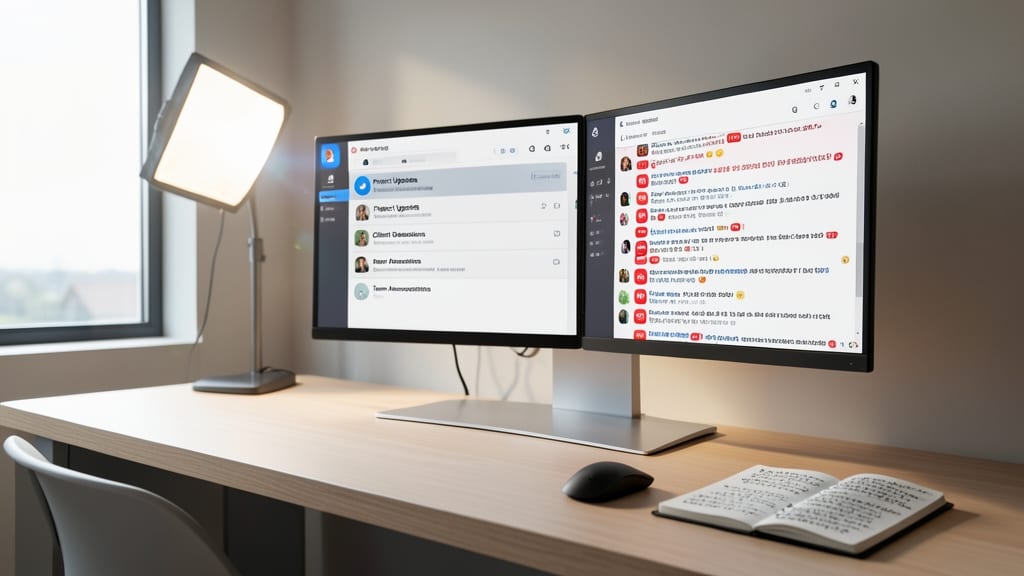
New hires and cross-functional teams waste hours figuring out where to post updates or which channels to join—until you add a channel description that acts as their onboarding guide.
Microsoft Teams lets you document the purpose (e.g., "For #Marketing-Campaigns: Share drafts here"), owners (e.g., "Managed by Alex T. & Jamie L."), and rules (e.g., "Use @here only for deadlines"). This single step cuts ramp-up time by 50% for rotating teams. Pro tip: Add a pinned message with quick links to key files or templates for even faster adoption.
This works best for high-turnover teams (like agencies or startups) or cross-department projects where context changes often. A well-documented channel means less "Where do I post this?" chaos. ✨
Enable Channel Moderation for High-Volume Teams
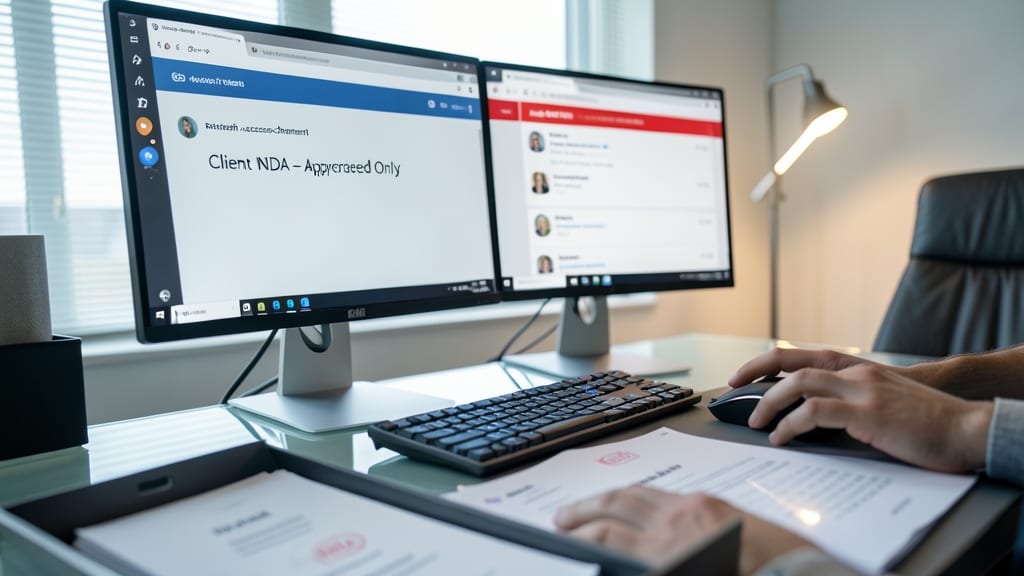
Legal teams juggling NDAs or finance groups handling sensitive client data can’t afford unchecked discussions—channel moderation is your first line of defense. By enabling post-approval requirements in Microsoft Teams, you ensure only vetted content appears in critical channels, cutting through spam and off-topic noise before it starts.
This feature lets admins designate specific channels where all posts must be approved by a designated moderator before appearing publicly. Perfect for #Client-Updates or #Compliance-Docs, it integrates seamlessly with Teams’ existing permissions system. You can even set custom rules to auto-reject posts with links or excessive emojis—ideal for security-conscious industries.
Teams handling high-stakes communications—like legal briefs or financial disclosures—will see immediate benefits in reduced risk and cleaner workflows. For industries where a single misplaced message could mean compliance violations, this is a zero-config upgrade worth enabling today. ✨
Organize Files with Tabbed Folders
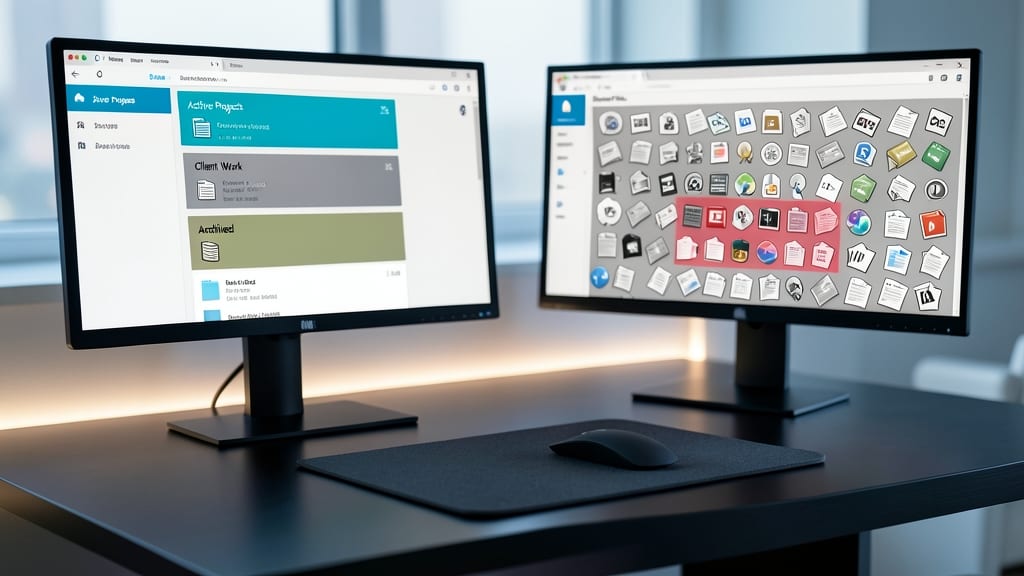
When shared files pile up faster than you can sort them, Microsoft Teams’ tabbed folder system becomes your secret weapon. Instead of drowning in a single "Shared Files" dump, you can instantly categorize documents into clear tabs like Active Projects, Client Work, or Archived—keeping everything visible but organized.
This feature shines for teams juggling 50+ files monthly, where misplaced documents derail workflows. Each tab acts as a virtual workspace: drag-and-drop files into the right category, and use color-coding to visually prioritize urgent tasks. The built-in search function even indexes files across all tabs, so finding that one spreadsheet takes seconds—not minutes.
Perfect for marketing teams with client deliverables, dev squads tracking sprint artifacts, or HR managing onboarding docs. With zero extra tools needed, it’s the zero-config upgrade your file management deserves. ✨
Set Clear Posting Guidelines per Channel
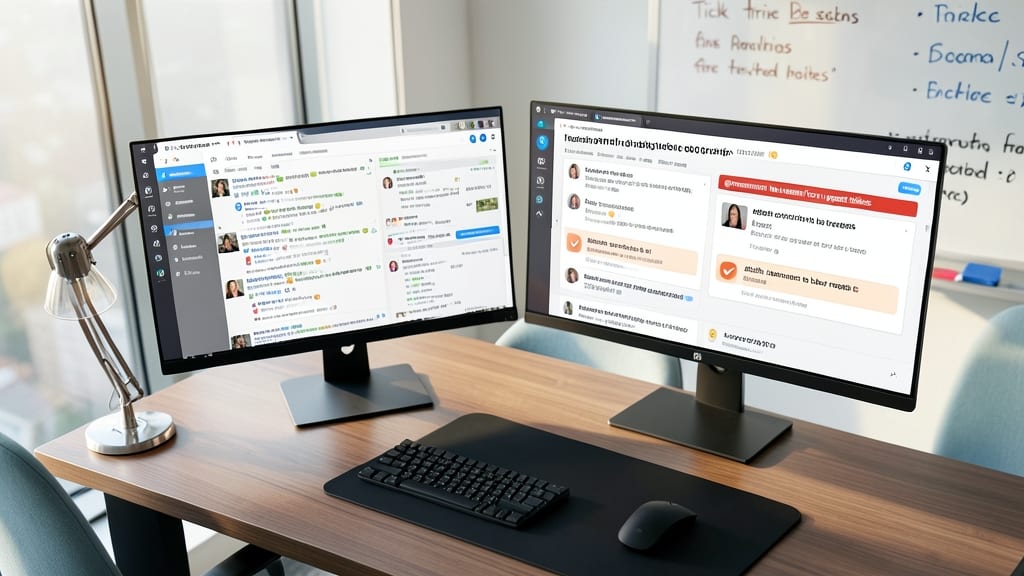
Customer support teams drowning in chaotic helpdesk channels will love this: pinned posting guidelines that enforce structure without stifling collaboration. Specify rules like “@mention the team for urgent tickets” or “attach screenshots to bug reports” to cut through the noise and ensure critical messages get seen first.
Add a response SLA (e.g., “Replies within 2 hours for priority tags”) to set expectations, and use bold formatting in your pinned message to highlight key dos and don’ts. For IT helpdesks, require short, structured updates (e.g., “Status: Fixing | ETA: 1 hour”) to streamline troubleshooting workflows.
This approach works best for high-volume support teams or internal IT channels where clarity directly impacts resolution times. ⚡
Archive Inactive Channels Quarterly
Tired of your Teams dashboard drowning in outdated channels that no one uses? Archiving inactive channels quarterly isn’t just about tidying up—it’s a storage and performance boost that keeps notifications from overwhelming your team.
Microsoft Teams lets you archive channels older than 6 months with a few clicks, but for larger organizations, Power Automate can automate this process. Set a quarterly trigger, and inactive channels (based on last activity) get moved to archive—freeing up storage and reducing clutter. Team members retain access to archived content but won’t see notifications from old discussions.
This strategy works best for enterprise teams with high channel turnover or project-based workflows where old channels pile up. It’s a zero-effort way to keep Teams running smoothly. ✨
Integrate Third-Party Apps Strategically
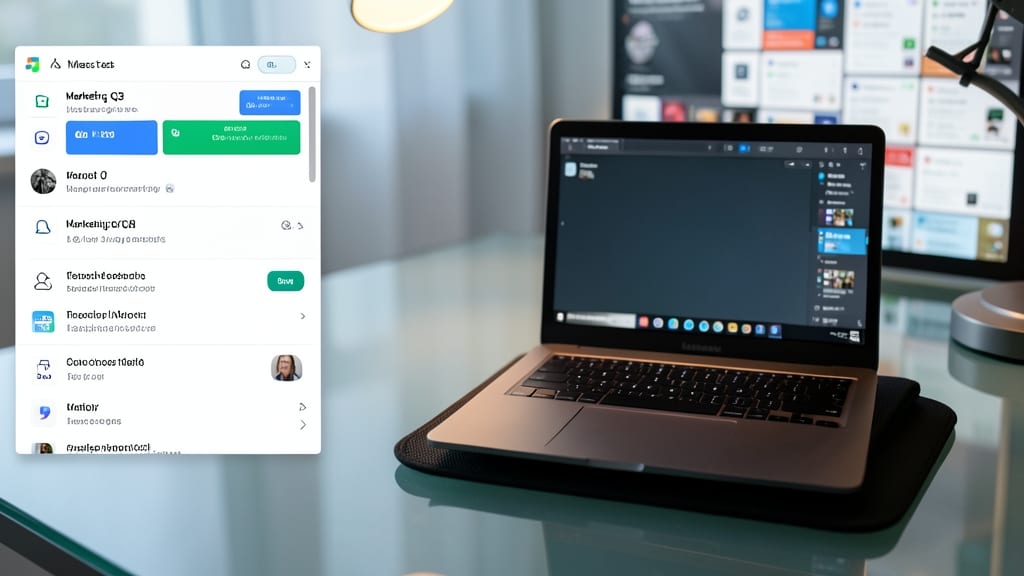
Tired of your Teams sidebar looking like a digital junk drawer packed with unused app tabs? Strategic app integration keeps your workflow clean while unlocking powerful tools—only where they matter. Instead of flooding general channels with Trello cards or Zoom links, pin these apps exclusively to channels like #Product-Launch or #Client-Onboarding, where they’ll actually be used.
Microsoft Teams lets you connect 100+ third-party apps—from project management tools like Asana to communication platforms like Slack—with just a few clicks. The key is targeted integration: a sales team might embed Salesforce in their #Deals-Pipeline channel, while developers keep GitHub issues in #Tech-Tasks. This approach cuts through the noise, ensuring your team focuses on the right tools at the right time without drowning in irrelevant notifications.
This strategy works best for teams juggling multiple tools—think marketing teams balancing Trello, Canva, and Zoom, or developers coordinating across GitHub, Jira, and Teams. By keeping apps channel-specific, you’ll transform clutter into a streamlined powerhouse. ✨
Use Threads for Deep Dives
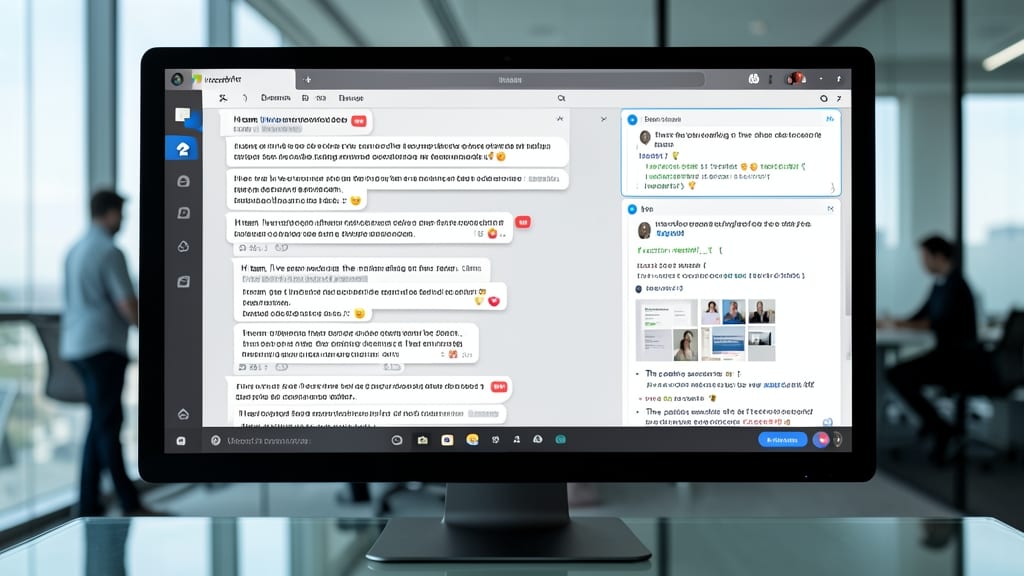
Tired of your main channel feed drowning in long-winded discussions that derail productivity? Microsoft Teams threads are your secret weapon for keeping conversations focused while preserving the depth of technical or creative feedback.
Start a thread for code reviews, design critiques, or troubleshooting sessions—any discussion that needs back-and-forth but would clutter the main feed. Threads let you nest replies invisibly until someone engages, while still allowing @mentions for key contributors. The visual hierarchy (indented replies) makes it easy to follow complex discussions without losing track, and you can always pin the original post for reference.
This works best for developers debugging issues, designers iterating on mockups, or writers refining documents—any team where feedback loops require multiple rounds of input. Try it today and watch your channel stay clean while collaboration stays rich. ✨
Train Teams on Keyboard Shortcuts

Tired of watching your team waste time reaching for the mouse every time they need to @mention someone or format text? Teaching just 5 essential keyboard shortcuts can shave 10+ minutes off daily workflows—and Microsoft Teams makes it easy with built-in support.
Start with the top 3 shortcuts: Ctrl+K for @mentions, Ctrl+E to edit messages, and Ctrl+Shift+P to open the command menu. Teams also supports custom shortcuts for power users, like Alt+Shift+D to start a call. A quick 15-minute training session can turn your team into shortcut pros, cutting down on repetitive mouse clicks and speeding up responses in remote meetings.
This is especially valuable for customer support teams or remote dev squads where every second counts. Share a printable cheat sheet during onboarding, and watch productivity climb. ✨