
Coding
Excel’s math and trigonometric functions unlock powerful data analysis and engineering capabilities. From financial modeling to physics simulations, these 10 essential formulas will transform how you crunch numbers and solve complex problems—no advanced degree required.
SUM Function for Basic Calculations

Need to add up sales figures, tally inventory, or calculate project budgets? The SUM function in Excel is your go-to tool for aggregating numbers—whether you're working with a single row, entire columns, or mixed ranges.
Just type =SUM(range), like =SUM(B2:B10), and Excel instantly calculates the total. It even handles non-adjacent ranges (e.g., =SUM(B2:B5, D2:D5)) and ignores text or blank cells. Perfect for financial summaries, inventory counts, or time-tracking reports, this function saves hours of manual addition.
Small business owners, accountants, and project managers rely on SUM daily to turn raw data into clear insights. Try it today—your spreadsheets will thank you! ✨
AVERAGE Function for Statistical Analysis
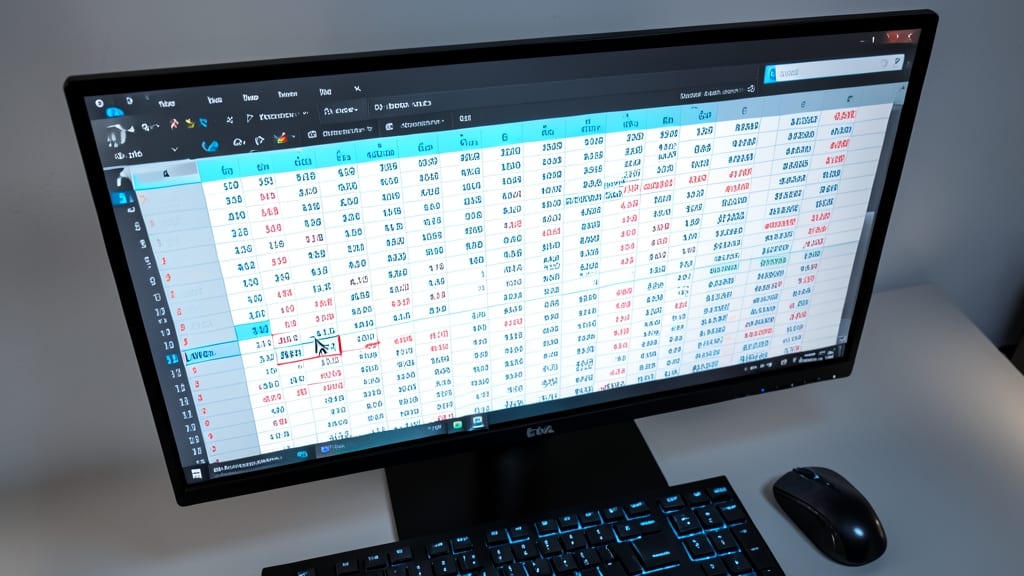
Struggling to spot trends in messy datasets where some values are text or logical errors? The AVERAGE function in Excel is your statistical Swiss Army knife—it calculates the mean while automatically ignoring non-numeric entries, giving you clean insights without manual filtering.
Simply type =AVERAGE(range), and Excel handles the rest. For example, =AVERAGE(B2:B100) returns the average of all numbers in that range, skipping text like "N/A" or logical values (TRUE/FALSE). It’s perfect for quality control metrics (e.g., average defect rates), performance dashboards (e.g., employee productivity scores), or research datasets where outliers need smoothing. The function even works with arrays and nested formulas for advanced scenarios.
Engineers, data analysts, and business leaders rely on this function to turn raw numbers into actionable trends—no more headaches from mixed data types. ⚡
SQRT Function for Square Root Calculations

Need to calculate distances in engineering projects or standard deviations in financial models? The SQRT function in Excel handles square roots with precision, making complex math effortless. Whether you're working with Pythagorean theorems or variance calculations, this formula delivers accurate results in seconds.
Simply type =SQRT(number)—for example, =SQRT(25) returns 5—and Excel handles the rest. It works seamlessly with cell references (like =SQRT(B2)) and even supports nested functions for advanced scenarios. The function also avoids errors for negative inputs, returning #NUM! to alert you to invalid data.
Perfect for engineers, data analysts, or anyone crunching numbers—this function turns manual calculations into a one-click solution. ⚡
SIN, COS, and TAN for Trigonometry

When designing bridges, analyzing sound waves, or modeling climate data, SIN, COS, and TAN become your secret weapons in Excel. These trigonometric functions unlock precise calculations for angles, periodic patterns, and spatial relationships—critical for fields where even a tiny miscalculation can have real-world consequences.
Use SIN(angle) to calculate the ratio of a right triangle’s opposite side to its hypotenuse (e.g., =SIN(30°) returns 0.5), COS(angle) for adjacent-to-hypotenuse ratios, and TAN(angle) for opposite-to-adjacent. They also handle radians (default in Excel) or degrees (use RADIANS() first). For engineers, these functions model waveforms, while architects use them to calculate roof slopes or structural stresses—all without manual calculations.
Perfect for data scientists analyzing time-series trends or game developers designing physics engines, these functions turn raw numbers into actionable insights. ⚡
PI Function for Circular Calculations

Tired of manually typing 3.14159 every time you calculate circle areas or pipe volumes? The PI() function in Excel automates this with a single click, delivering 15 decimal places of precision instantly. Whether you're designing machinery or analyzing circular datasets, this function eliminates typos and saves time.
Just type =PI() in any cell, and Excel returns π (3.141592653589793). Combine it with radius values in formulas like =PI()RADIUS² for area or =2PI()*RADIUS for circumference. It’s the secret weapon for engineers, architects, and anyone working with circular or spherical measurements.
Perfect for CAD drafters, manufacturing engineers, or even hobbyists building custom furniture—this function turns repetitive geometry tasks into a breeze. ✨
POWER Function for Exponential Growth

When your calculations involve growth that compounds over time—whether it’s investments, bacteria cultures, or even radioactive decay—Excel’s POWER function becomes your secret weapon. Unlike basic multiplication, this formula handles exponential scaling with ease, letting you raise any number to any power in seconds.
The syntax is simple: =POWER(number, power). For example, =POWER(2, 10) instantly calculates 1,024 (2 raised to the 10th power), while =POWER(1.05, 12) computes the future value of an investment with 5% annual growth over 12 years. Scientists use it to model half-life decay, and financial analysts rely on it for compound interest projections—all without manual calculations.
This function is a must-have for anyone working with non-linear data, from biologists tracking population trends to engineers simulating physical systems. Try it today to unlock the full potential of exponential math in Excel! ⚡
LOG and LOG10 for Logarithmic Scales

When sound engineers tweak audio levels or programmers analyze algorithm efficiency, they’re often working with logarithmic scales—and Excel’s LOG and LOG10 functions make it effortless to convert between them.
Use LOG for natural logarithms (base e) or LOG10 for common logs (base 10), both critical for decibel calculations (where 0 dB = 1, 10 dB = 10x power) or Big-O analysis in coding (e.g., log(n) time complexity). These functions handle negative numbers (returning errors) and zero values (returning #NUM!)—just like a scientific calculator, but built into Excel.
Perfect for audio technicians, chemists (pH scale), or software developers debugging performance bottlenecks. ⚡
ROUND and ROUNDDOWN for Precision Control
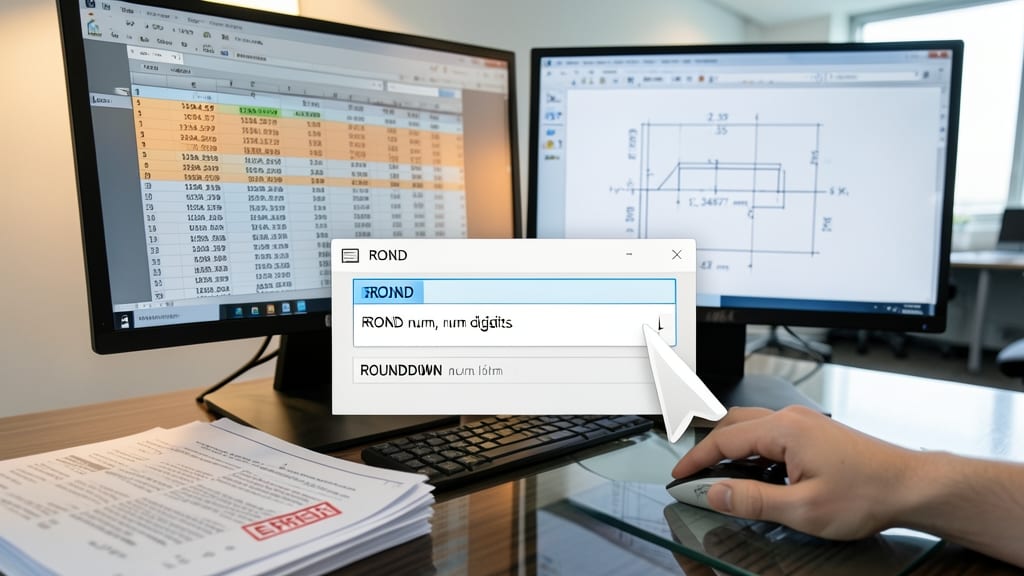
Tired of rounding errors ruining your financial reports or engineering specs? The ROUND and ROUNDDOWN functions in Excel are your precision control tools, ensuring numbers behave exactly as expected—whether you need two decimal places for currency or whole numbers for inventory counts.
Use ROUND(number, decimals) to round to a specified precision—like ROUND(3.14159, 2) returning 3.14—while ROUNDDOWN(number, decimals) truncates values without rounding up, ideal for budgets or technical specs where overestimation risks errors. Both functions handle negative numbers seamlessly, making them perfect for scientific data or financial projections.
Accountants, engineers, and data analysts rely on these functions to maintain consistency across large datasets. For example, ROUNDDOWN ensures tax calculations never round up unexpectedly, while ROUND keeps engineering tolerances precise. ⚡
RADIANS and DEGREES for Angle Conversion

Stuck bridging the gap between degrees (what you see on a protractor) and radians (what algorithms and physics equations demand)? Excel’s RADIANS and DEGREES functions solve this instantly—no memorizing conversion formulas required.
Type =RADIANS(45) to convert 45° to 0.7854 radians, or use =DEGREES(π/2) to flip π/2 radians back to 90°. These functions are zero-config—just plug in your angle, and Excel handles the rest. Perfect for navigation systems (GPS coordinates), astronomy software (celestial calculations), or CAD tools (precision drafting).
Engineers and scientists rely on them daily to ensure compatibility across tools that expect different angle formats. Try it with =DEGREES(RADIANS(30))—you’ll get 30° back, proving the conversion works both ways. ✨
ATAN2 for Advanced Trigonometry

When standard trig functions like TAN fail to handle negative or zero values, ATAN2 steps in as Excel’s secret weapon for precision. Unlike its simpler counterpart, this function calculates the exact angle between a point and the origin in 2D space, accounting for all quadrants—critical for robotics pathfinding or game physics where direction matters.
Simply input ATAN2(y, x) to get the angle in radians, where y and x are coordinates. It returns values between -π and π, eliminating ambiguity. For degrees, wrap it with DEGREES(). This is how game devs calculate player rotation or how GPS systems determine heading—no guesswork, just accurate results.
Perfect for developers, engineers, or hobbyists working with spatial data, ATAN2 turns raw coordinates into actionable angles. 💻