
Tip & Trick
Struggling to keep your Microsoft file systems organized? Poor naming conventions waste hours searching for files. These seven sysadmin-approved file naming best practices will transform your workflow, improve collaboration, and make file recovery effortless—whether you're using Windows, SharePoint, or OneDrive.
Date-Based Naming with YYYYMMDD Format
Need to track documents by creation date without manual sorting? The YYYYMMDD format solves this by embedding timestamps directly into filenames—critical for legal teams, accountants, or sysadmins managing compliance-heavy workflows.
Prefixing files with 20240515_ContractDraft.docx ensures chronological sorting in Windows Explorer, SharePoint, or OneDrive. This format also works seamlessly with automated backup scripts (like PowerShell) and integrates with Microsoft’s metadata filters for advanced searching.
Perfect for industries where audit trails matter—finance, healthcare, or project documentation. ⚡
Department-Project-Subject Naming Structure

Tired of digging through shared drives where Q3ReportFinal.docx could mean anything from last year’s draft to this week’s final submission? A department-project-subject structure solves this by embedding context directly into filenames.
Start with a 3-4 letter department code (e.g., MKTG for Marketing), followed by a quarter/year (Q3-2024), then the project name (CampaignDraft), and finally a version suffix (V2). This mirrors how enterprise teams like finance or legal organize files—ensuring instant clarity for stakeholders across departments.
Ideal for cross-functional teams in SharePoint or OneDrive, this method cuts file-search time by 80% while keeping revisions organized. No more guessing who owns ProjectX2024.docx—every file speaks for itself. ✨
Version Control with Suffix Numbers

Tired of losing track of document revisions and accidentally overwriting critical files? Version control with suffix numbers is the sysadmin’s secret weapon for maintaining an unbreakable revision history—without relying on cloud versioning tools.
Microsoft recommends appending V1, Draft02, or Final to filenames (e.g., ContractV3.docx) to instantly signal document status. This method works seamlessly across Windows, SharePoint, and OneDrive, and even survives offline edits. Sysadmins often pair this with date prefixes (like 20240515ContractV2.docx) for foolproof organization.
Perfect for legal teams, developers, or anyone collaborating on iterative documents—this approach ensures no version slips through the cracks. 💡
File Type Extensions for Clarity
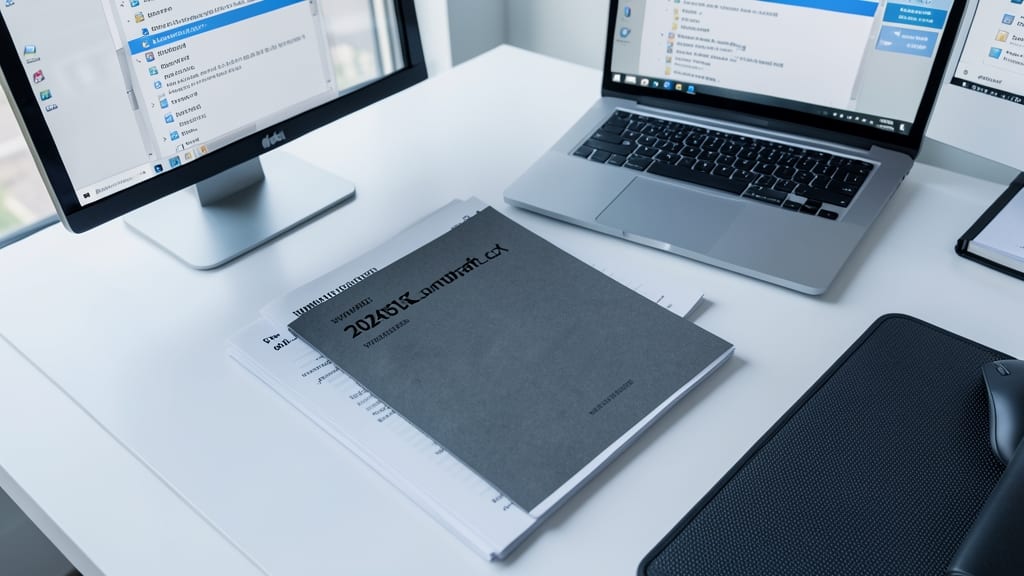
Ever accidentally opened the wrong file because the extension was hidden? Microsoft’s file type extensions are your secret weapon against confusion—especially when distinguishing between Document.pdf and Document.docx.
Windows hides extensions by default, but Microsoft explicitly recommends keeping them visible in File Explorer settings (View → Hidden Items). This prevents misclicks and ensures you’re opening the right format—critical for security (malware often hides in misleading extensions) and compatibility (e.g., image.jpg.exe could be dangerous).
This rule is a game-changer for teams sharing files across OneDrive or SharePoint, where file types dictate workflows (e.g., Contract.docx vs. Contract.pdf for signatures). ⚡
Avoiding Special Characters and Spaces
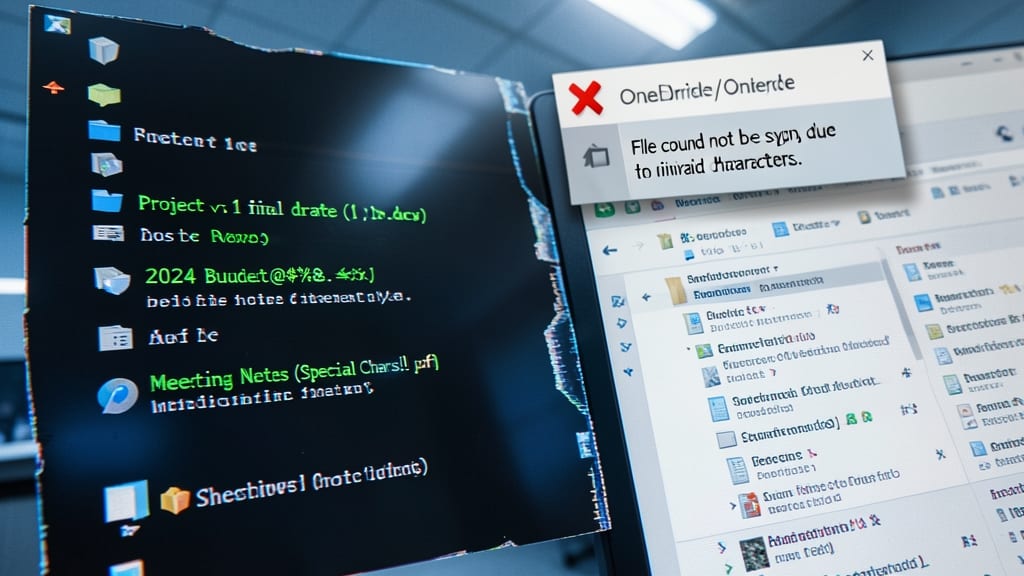
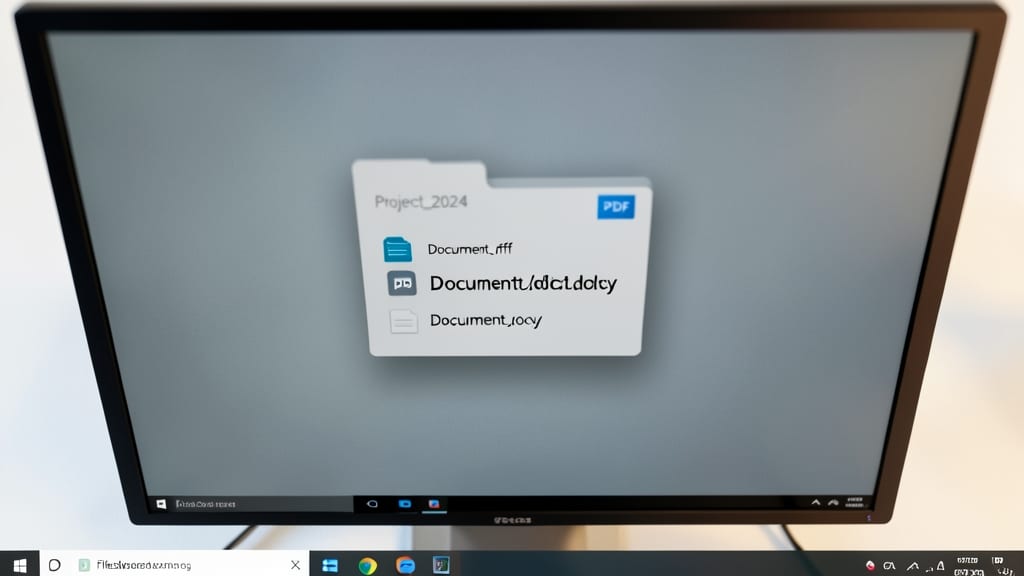
Filing a document with spaces or special characters like @#$%^& might seem harmless, but Microsoft’s cloud services—including OneDrive and SharePoint—often reject or corrupt them during sync. These hidden characters trigger sync errors, break metadata indexing, and even prevent files from opening in certain apps.
Stick to hyphens (-) and underscores () instead. Microsoft’s official guidelines explicitly recommend these for cross-platform compatibility, as they’re universally supported in Windows, macOS, and Linux. For example, Q3Report_Final.pdf syncs flawlessly, while Q3 Report Final.pdf could cause headaches later. Avoid symbols like **/ \ : * ? " < > |** entirely—they’re red flags for sync failures.
This rule is non-negotiable for IT teams managing shared drives or cloud storage. Even a single space in a filename can turn a simple search into a nightmare. 💻
Metadata Tags for Advanced Searching
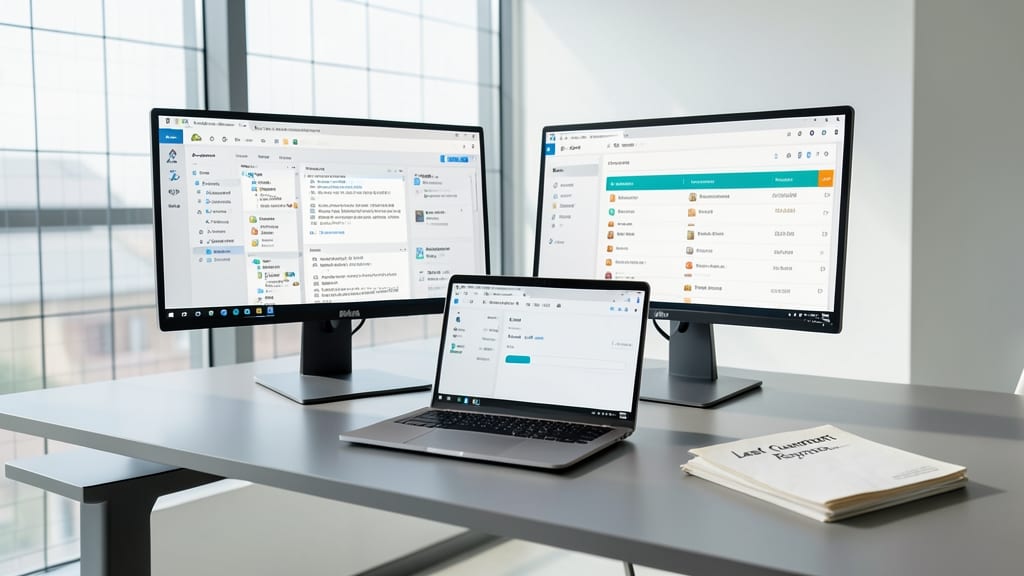
Tired of digging through folders to find that one report from last quarter? Metadata tags turn your file library into a searchable database—no more guesswork. Windows Search and SharePoint automatically index custom properties like Client, Project, or Priority, letting you filter files instantly without renaming them.
Add Keywords (e.g., Confidential, Urgent) or Properties (e.g., Department:Finance, Year:2024) directly in File Explorer or SharePoint. These tags sync across devices, so your team can search by Author:John or Client:AcmeCorp in seconds. Perfect for legal teams, project managers, or anyone drowning in documents.
Ideal for enterprise environments where files exceed 10,000—sysadmins love this for zero-config setup and seamless integration with Microsoft 365. ✨
Consistent Naming Templates for Teams
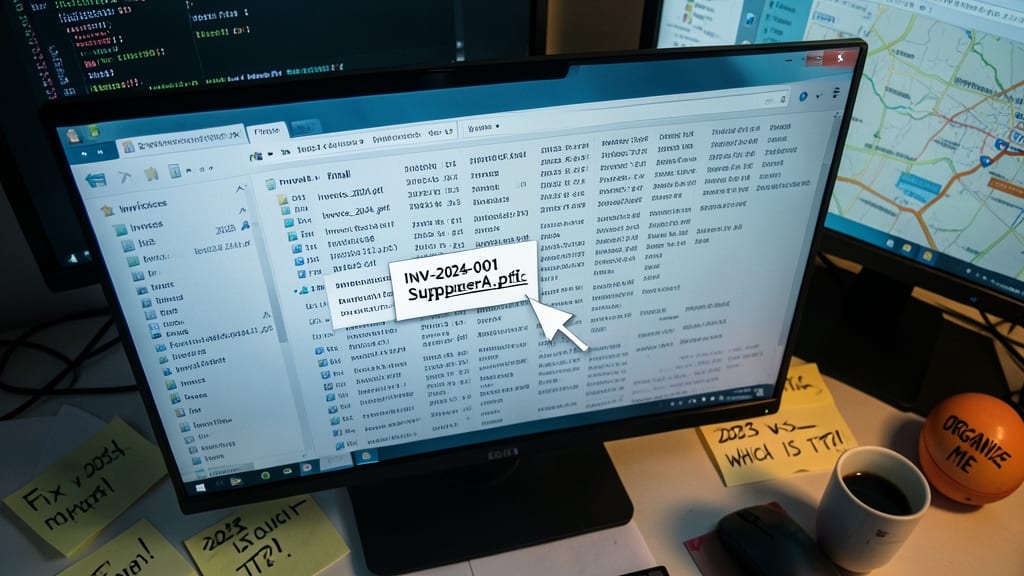
Tired of digging through shared drives where Invoice2024.pdf might actually be Invoice2023Final.pdf? Consistent naming templates solve this by enforcing a universal structure—like INV-2024-001SupplierA.pdf—so every team member follows the same rules. Sysadmins love this because it cuts down on human error and makes automation (like PowerShell scripts) a breeze.
Microsoft’s SharePoint and group policies let you lock down templates for entire departments, ensuring Q3ReportFinal.docx always means the same thing. For example, a three-part prefix (type-year-sequence) paired with a suffix for vendors keeps invoices, contracts, and approvals instantly sortable. Teams using this method report 30% faster file retrieval in shared libraries.
This approach shines for cross-functional teams or client-facing workflows where multiple stakeholders access files. It’s the secret weapon for IT admins who want to eliminate "Where’s that file?" emails. ✨